Wedding Photo QR Code Sign Wording + Printable Templates
Copy six wedding photo QR code sign wording options. Download three editable SVG and PDF designs in A6 and 5 x 7, add your code, and test before printing.
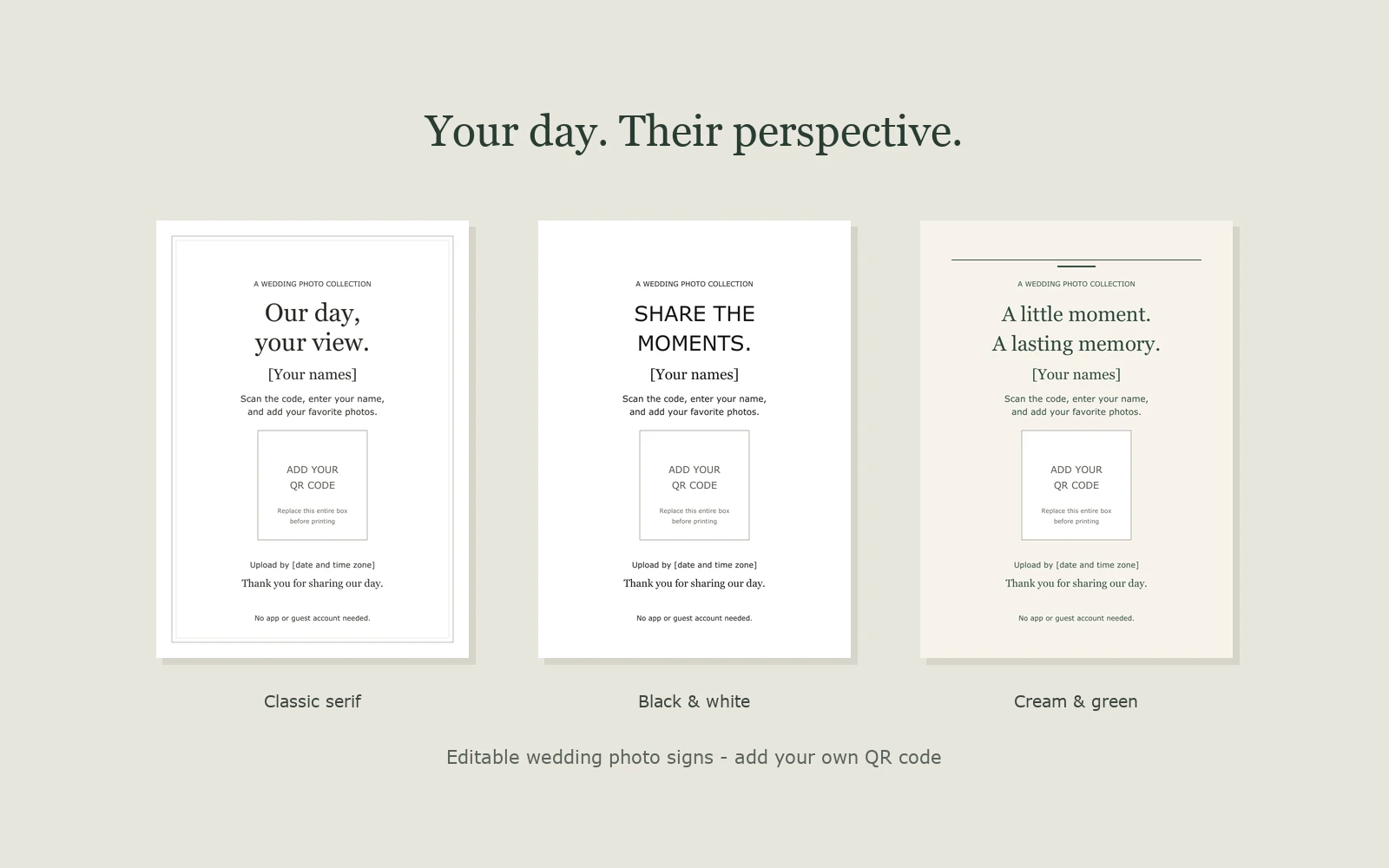
A wedding photo QR code sign needs one clear invitation: “Scan the code, enter your name, and add your favorite photos from our wedding.” Add your names and an upload deadline, then place the code where guests can reach it with their phones. Below, you can copy six wording options and download three original sign designs in editable SVG and PDF formats.
The downloads are blank templates, not working wedding invitations. Replace the QR placeholder with your own guest invitation code and personalize the text before printing. You don't need an account or email address to download them.
Choose wording that matches your album
Keep the instruction near the code. Tell guests what to contribute and what happens after they scan. If your album only accepts photos, ask for photos rather than photos and videos.
Replace anything in square brackets before using these examples. The deadline should match your album's contribution settings; include a time zone if guests will upload from different places.
1. Simple and direct
Share your wedding photos with us.
Scan the code, enter your name, and add your favorite photos.
Please upload by [date and time zone]. Thank you!
This is a useful default for reception tables, the guest book, or a card sent home with guests.
2. Formal
A view of our day, from you.
We would love to keep the moments you captured. Please scan the code, enter your name, and share your wedding photos.
With thanks, [names]. Please upload by [date and time zone].
Use this on a larger sign or shorten the middle sentence for a small card.
3. Warm and personal
We would love to see our day through your eyes.
Scan the code, enter your name, and add the photos you took while celebrating with us.
Love, [names]. Please share by [date and time zone].
This asks for guests' perspectives without suggesting they need professional-looking photos.
4. Playful
Good dance moves. Great photos.
Caught a moment worth keeping? Scan the code, enter your name, and send us your favorite wedding photos.
Add them by [date and time zone]. Thank you!
Place this near the reception or dance floor. Keep it separate from any request for an unplugged ceremony; an upload invitation doesn't have to encourage photography during every part of the wedding.
5. For a host-only collection
Share a memory with the two of us.
Scan the code, enter your name, and add your wedding photos. This collection is visible to us, rather than a gallery for guests to browse.
Please upload by [date and time zone]. With love, [names].
In Ourview, a host-only collection lets guests contribute without viewing the collection. Use wording like this when you have chosen that setting. Avoid “scan to see everyone's photos” on a host-only album.
6. For a gallery that opens later
Share now. Look back together later.
Scan the code, enter your name, and add your photos. The shared gallery opens on [reveal date, time, and time zone].
Please upload by [upload deadline and time zone]. Thank you!
Ourview's gallery reveal and contribution deadline are separate settings. Confirm both before printing: guests may be able to upload while the shared gallery is still waiting to open.
For an Ourview sign, you can also add “No app or guest account needed.” Guests join in their browser by entering a name; the host still signs in to create and manage the event. For other album services, check the actual guest flow before using that line.
Download the printable sign templates
Each design comes in two portrait sizes: A6 (105 × 148 mm) and 5 × 7 inches (127 × 177.8 mm). These are flat cards for a holder or frame, not folded tent cards. Choose the size your holder accepts rather than stretching one size to fit another.
Start with the SVG if you want to edit names, wording, and the QR area. The PDF preserves the supplied layout for printing after customization in a PDF editor; it isn't a fillable form. Neither format is ready to share with guests until you've replaced the placeholders.
Classic serif
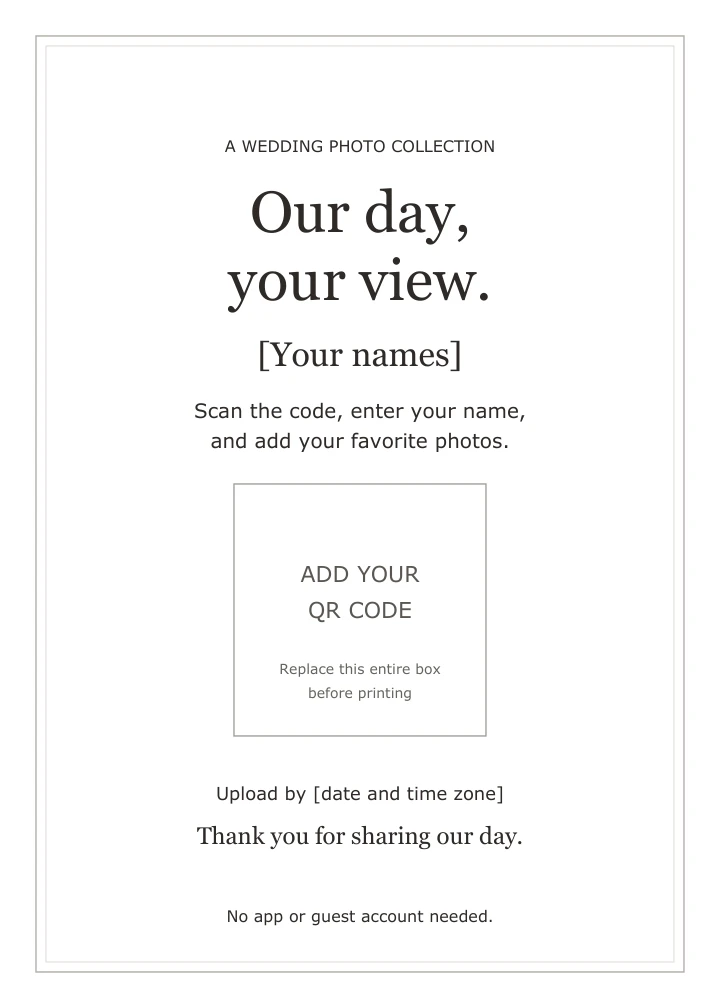
A fine double border and a serif headline: “Our day, your view.” Pair it with the simple or formal wording. The template uses Georgia for the headline and names, and Verdana for instructions.
| Size | Editable file | PDF layout |
|---|---|---|
| A6 | Download classic SVG, A6 | Download classic PDF, A6 |
| 5 × 7 inches | Download classic SVG, 5 × 7 | Download classic PDF, 5 × 7 |
Black and white
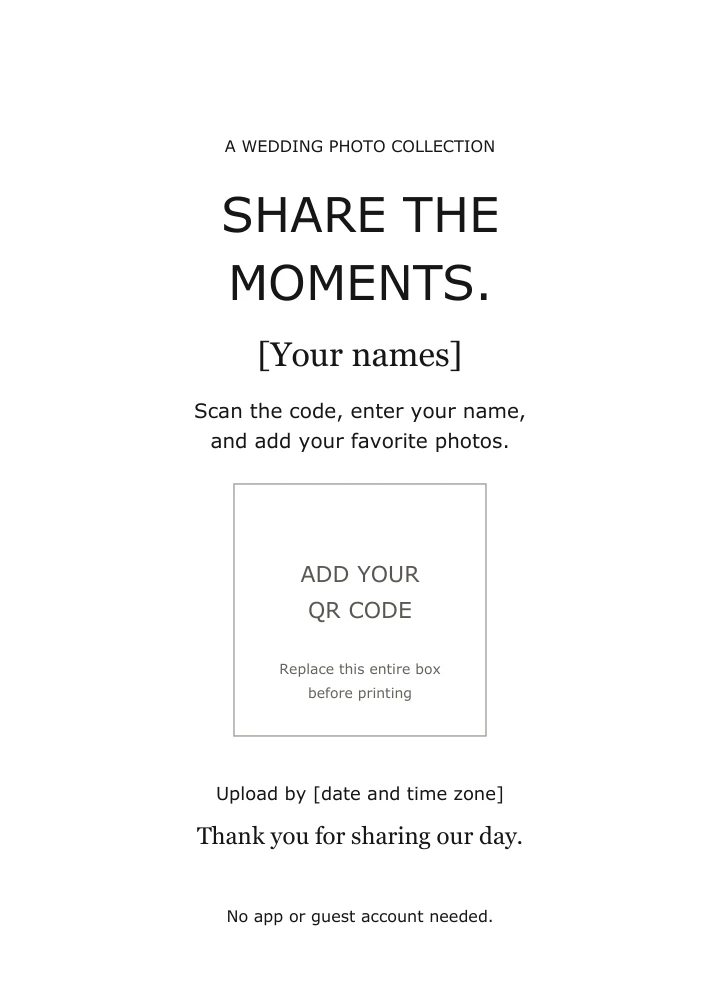
A borderless design with a direct headline: “Share the moments.” Use it when you want a simple card that can be printed without colored backgrounds. Its headline and instructions use Verdana, with Georgia for the names and thank-you line.
| Size | Editable file | PDF layout |
|---|---|---|
| A6 | Download black and white SVG, A6 | Download black and white PDF, A6 |
| 5 × 7 inches | Download black and white SVG, 5 × 7 | Download black and white PDF, 5 × 7 |
Cream and green
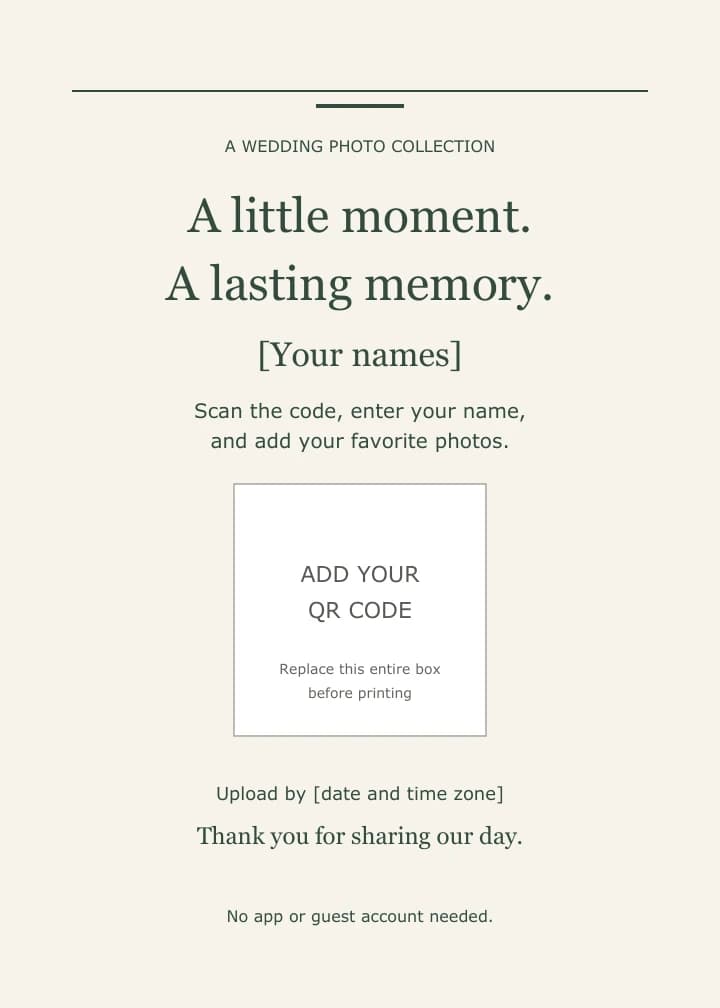
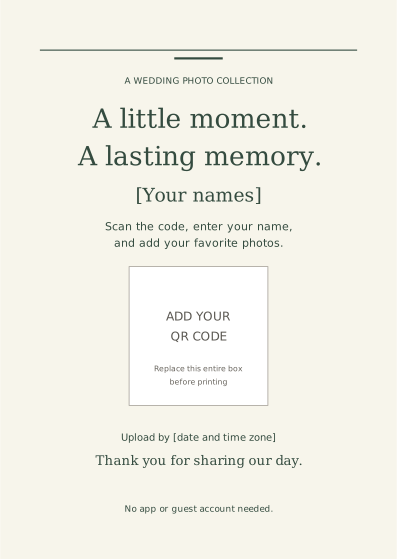
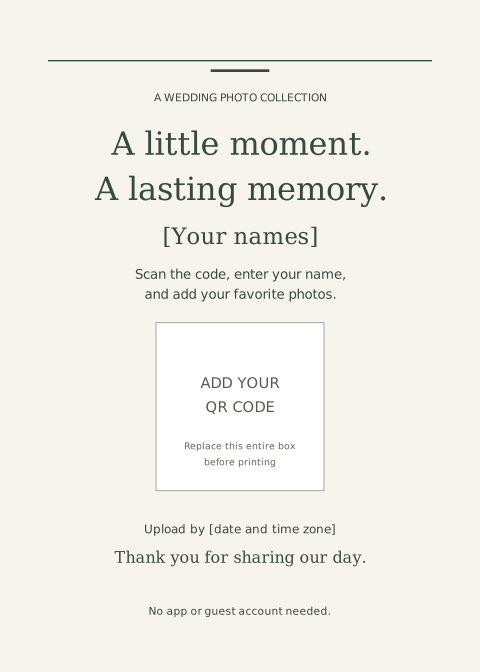
A cream background, deep green type, and restrained line details: “A little moment. A lasting memory.” The QR area stays white so your code doesn't sit on the colored background. Type uses Georgia and Verdana.
| Size | Editable file | PDF layout |
|---|---|---|
| A6 | Download cream and green SVG, A6 | Download cream and green PDF, A6 |
| 5 × 7 inches | Download cream and green SVG, 5 × 7 | Download cream and green PDF, 5 × 7 |
Use terms: These original Ourview templates are free to download, edit, and print for personal events. You may share them with the designer or printer preparing your event stationery. Do not resell the templates or redistribute them as a template collection. Attribution on the finished card is optional.
Keep the download instructions and use terms with your files if you pass them to a designer or printer.
Add your own QR code and export the card
You need your album's current guest invitation code, your chosen template, and an SVG-capable vector editor. If you haven't created the invitation yet, follow our wedding photo QR code setup guide.
Ourview shows the QR in the host event's Invite guests panel. It doesn't currently export these printable cards from the app. Use the displayed code or a code generated directly from the Guest link; don't encode the host dashboard address.
- Open the SVG in a vector editor. For example, Inkscape supports SVG editing. Keep an untouched copy of the download. If your computer substitutes a font, check every line for changed wrapping or spacing.
- Replace the names and deadline. Edit the text objects, including the square brackets. Use shorter wording or reduce the type size if a long name extends into the border. Keep instructions readable at the final card size.
- Delete the entire QR placeholder. Remove its label, outline, and instruction text, not just the words in the middle. In the SVG it is grouped as
qr-placeholder. Leave the surrounding card text in place. - Import your QR image. Keep it square and include its blank border. Center it in the former placeholder area. In Inkscape, use File → Import and embed the image rather than linking to a separate file, so the saved design remains portable. See the image import instructions.
- Keep the code clear. Use dark modules on white and don't add a logo, border, or text inside the blank margin. QR codes require a clear margin four modules wide on all sides, according to DENSO WAVE. A module is one small square in the code.
- Save the edited SVG and a PDF copy. Keep the original document dimensions. Inkscape's PDF export guide explains saving a PDF while retaining an editable SVG. Open the exported PDF to check the finished result before printing.
The supplied QR area is approximately 37 mm across on A6 and 44 mm on 5 × 7 cards, including the space for the code's margin. Those are layout dimensions, not a guarantee that every link, camera, or print finish will scan reliably. Use a sharp code and test the final output. If it fails, enlarge the code or use a larger card rather than squeezing away the margin.
If you start from a supplied PDF instead, use a PDF editor that can add your QR image and replace the placeholder text. Opening it in a regular PDF viewer won't provide that editing workflow. The SVG is the simpler starting point when you need to change the design.
Print one copy before the full batch
Print the personalized PDF at Actual size or 100%, rather than “fit to page.” These files have no bleed or crop marks. If printing onto a larger sheet, measure and cut to the stated card dimensions. For a professional print order, ask the printer whether they need bleed or other adjustments before sending the file.
- Check that no names, brackets, deadline placeholders, or “Add your QR code” labels remain.
- Scan the actual printed card with the phones you have available, ideally an iPhone and an Android phone. Try the lighting, viewing distance, and holder you plan to use.
- Confirm it opens your wedding's guest invitation. From a fresh guest browser, enter a name, upload a photo, and check that the host receives it.
- Check the gallery behavior against the wording: a host-only collection shouldn't promise guest browsing, and a delayed gallery should show the correct reveal time.
- If glare, blur, or low contrast makes scanning difficult, change the finish or increase the QR size and test again.
These are checks for your personalized invitation. The blank downloads have no scannable code; they can't prove that your guest link or upload settings work.
Place the card where guests can use it
Put a card near the guest book or on a reception table with a clear view of the code. Keep it out from behind flowers and away from anything that forces guests to lean across the table. Send the guest link in a message too, so people can contribute afterward without taking a card home.
In Ourview, someone who receives a forwarded invitation may also be able to join while access and capacity allow. The QR is a way to open that invitation, not an extra privacy control. If you use Replace invitation link, update the code on your signs and in your messages: the old invitation and its QR stop working.
For the broader collection plan, including follow-up messages and saving your files, see how to collect wedding photos from guests. When you're ready to set up the invitation, explore Ourview's QR code photo album, then personalize and test your chosen card.