How to Create a QR Code for Wedding Photos
Create a wedding photo QR code with the right guest link. Follow the Ourview setup, rehearse an upload, and test your printed cards before the wedding.
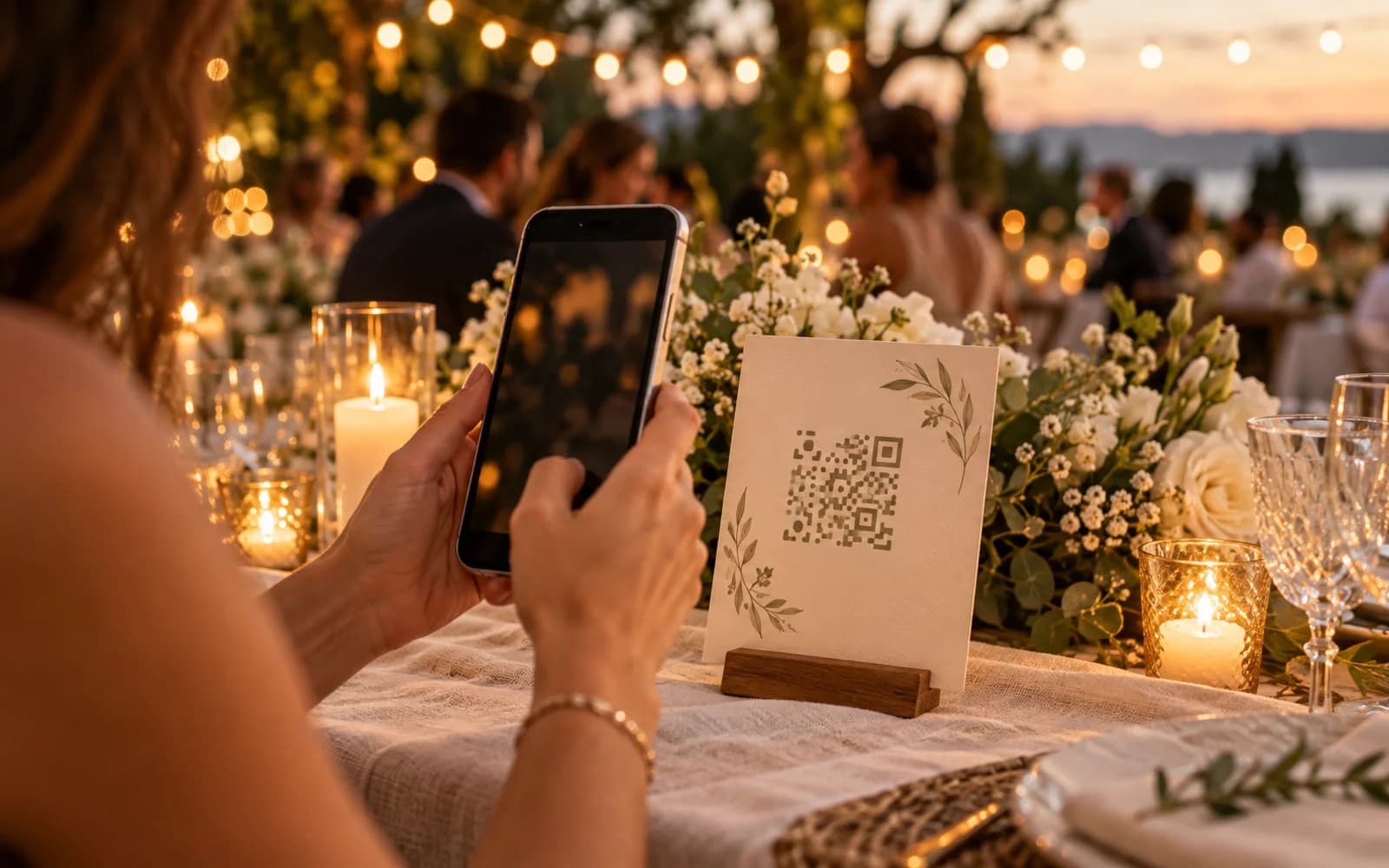
To create a QR code for wedding photos, set up an album that accepts guest uploads and use its guest invitation link as the QR destination. In Ourview, the event's Invite guests panel already shows that code. Test the invitation on another phone, put the code on your sign or table card, and scan one printed copy before ordering the rest.
The important part is where the code leads. A QR code that opens your host dashboard, a wedding website, or a view-only album won't give guests the upload flow you intended. This guide walks through the Ourview setup, a guest rehearsal, and the checks to make before printing.
1. Create the album guests will contribute to
The host signs in to Ourview and creates the event. Guests use the invitation in their browser; they don't need an Ourview account or an app download.
Work through the event setup in this order:
- Event details: enter a recognizable wedding name, start date and time, and time zone.
- Guest experience: choose a shared gallery if guests should browse the photos, or a host-only collection if only you should see them.
- Timing and reveal: choose when a shared gallery opens and when contributions close. Guests can contribute before the gallery reveal; these are separate settings.
- Invitation cover: add a cover image if you want one.
- Capacity and price: choose the guest limit and shot limit, then finish creation. A paid selection takes you through checkout.
Choose limits for the people who will contribute, and leave an upload window that includes time after the wedding. Check the current event pricing before committing to a plan. A five-guest event with a limited shot allowance is available free; unlimited shots is a paid option.
If you're still choosing between an event album and other ways to collect files, start with our guide to collecting wedding photos from guests. Here, we'll focus on getting the invitation onto a working QR card.
2. Open the invitation and copy the guest link
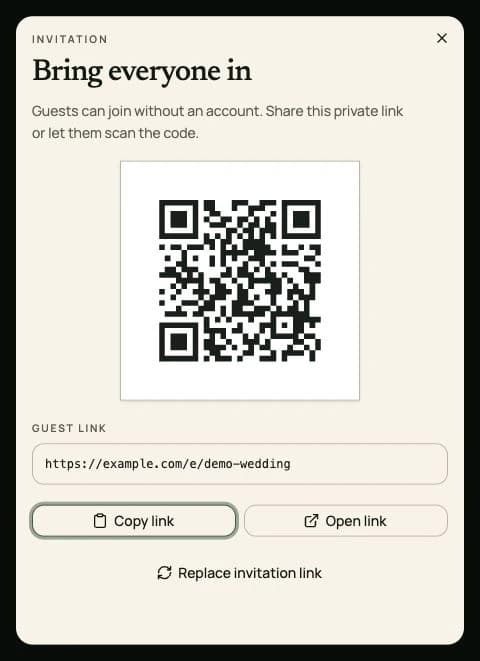
Open your host event and select Invite guests. The panel is titled Bring everyone in and contains the event's QR code, a Guest link, Copy link, and Open link.
Use Copy link to save the invitation for your messages and any QR generator you use. If copying fails, select the displayed guest URL and copy it manually. Use this guest link rather than the address in your host dashboard's browser bar.
Treat the invitation as a link you share with your guests. Someone who receives a forwarded link may also be able to join while access is available. The QR code doesn't add a separate access restriction, and gallery visibility still follows your event settings.
3. Rehearse the guest upload before making the card
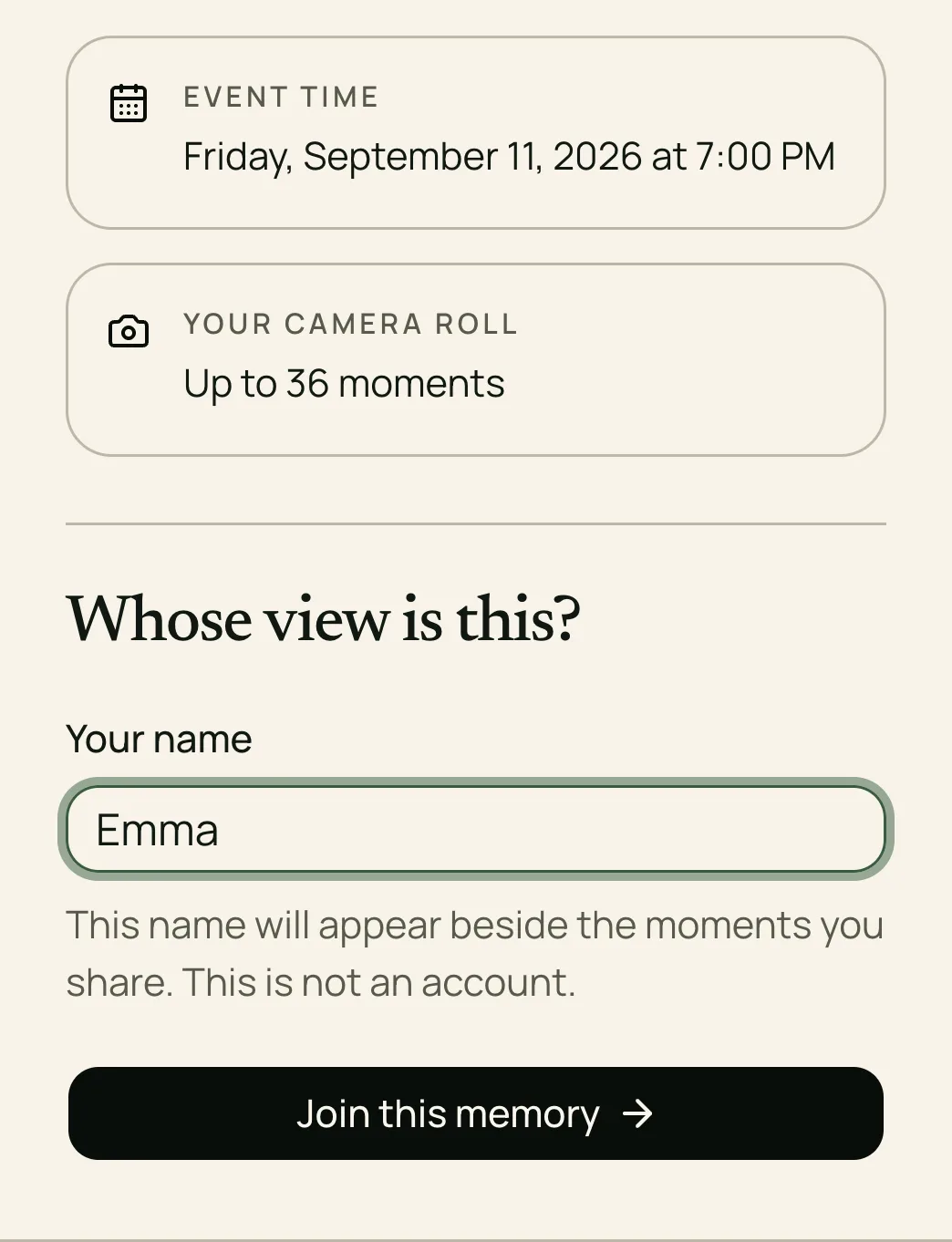
Open the copied link on another phone or in a separate browser where you haven't already joined the event. Open link is useful for checking the destination, but a browser with an existing guest pass may skip the name-entry step.
- Confirm that the invitation shows the correct event.
- Enter a guest name and select Join this memory.
- Choose a photo and keep the page open until the upload finishes.
- Return to the host event and confirm that the photo arrived.
- Check that the guest can see the gallery only when your visibility and reveal settings allow it.
For an iPhone rehearsal, include a HEIC photo if that's what your guests will upload. Ourview accepts photos, including HEIC/HEIF, up to 25 MiB each. Video uploads are not currently enabled.
4. Put the QR code on your sign or table card
Ourview shows the QR code in the invitation panel; it doesn't currently provide a print-ready PDF download. You can capture the displayed code, or paste the copied guest link into a QR generator and export a version suitable for your design.
If you use a generator, make sure the code directly encodes your guest URL. A code that uses the generator's redirect link adds another service whose availability and terms you need to check. Scan the exported code and inspect the destination before putting it into your layout.
Keep the code square, with dark modules on a light background. Avoid stretching it, covering it with a logo, or cropping away its blank border. QR codes need a clear margin four modules wide on every side, according to DENSO WAVE's QR code guidance. A module is one small square in the pattern.
Add a short instruction next to the code, such as:
Share your view of our wedding. Scan the code, enter your name, and add your favorite photos. Please upload by [deadline]. Thank you!
Replace the deadline with the one you set. This wording invites contributions without promising that guests can browse a host-only gallery. Send the guest link in a message too, so people can contribute later without keeping the card.
5. Test the printed version before the full batch
Print one copy at the size and on the material you intend to use. Scanning the image on your laptop is useful, but it doesn't test the finished card's sharpness, glare, or viewing distance.
- Scan the printed card with the phones you have available, ideally including an iPhone and an Android phone.
- Confirm that the code opens your actual guest invitation, not the demo shown in this guide.
- Repeat the name-entry and photo-upload rehearsal from a fresh guest browser.
- Try scanning from the distance guests will use and under lighting similar to the venue.
- Check that text, decorative elements, or a frame don't intrude into the code's clear margin.
- If scanning is unreliable, enlarge the code, improve the contrast, or change the print finish, then test again.
Once that copy works, keep the same QR image and layout for the batch. Put the cards where guests can reach and see them, with a clear line of sight for a phone camera.
Troubleshoot the code and its destination separately
| What happens | What to check |
|---|---|
| The camera doesn't recognize the code | Check blur, glare, contrast, size, and the blank margin. Try another phone and offer the guest link directly. |
| The code opens a dashboard or the wrong page | Replace the QR destination with the Guest link from Invite guests, then export and test again. |
| An old invitation no longer works | Check whether the invitation link was replaced. Use the current link and QR from the event. |
| The invitation opens, but a new guest can't join | Check the guest capacity, contribution deadline, and event availability. A readable code doesn't guarantee that joining is still open. |
| A joined guest can't add more photos | Check their remaining shot allowance and whether uploads have closed. |
| Uploading stalls | Check the connection, try a smaller batch, and confirm which files arrived before retrying. |
| Guests can upload but can't browse the gallery | Check whether the gallery is host-only or waiting for its reveal time. This can be the intended behavior. |
If you replace the invitation link, replace the printed code too
Replace invitation link creates a new invitation. The previous URL and the QR code containing it stop working immediately. Update your messages and reprint affected cards; the pattern on an existing card cannot change with the new link.
Upload access is also limited by your event's schedule. Ourview stores photos for 90 days from the event start, and you can set an earlier contribution deadline. Opening the gallery later doesn't extend storage. Plan to use Download all in the host event and save the archive before storage ends.
Your final pre-print checklist
- The QR destination matches the current Guest link.
- A fresh guest browser can join and complete a photo upload.
- The host can see the uploaded photo.
- The gallery behavior matches what you've told guests.
- Guest and shot limits fit your plan, and the contribution deadline is clear.
- The actual printed card scans at its intended size and placement.
- You have a digital copy of the guest link to send alongside the printed invitation.
Use the QR code photo album page for an overview of Ourview's invitation flow. When your rehearsal is complete, the tested guest link and printed card are ready to share.