How to Collect Wedding Photos from Guests
Collect wedding photos from guests with one shared link or QR code. Compare practical options, plan your reminders, and keep the original files.
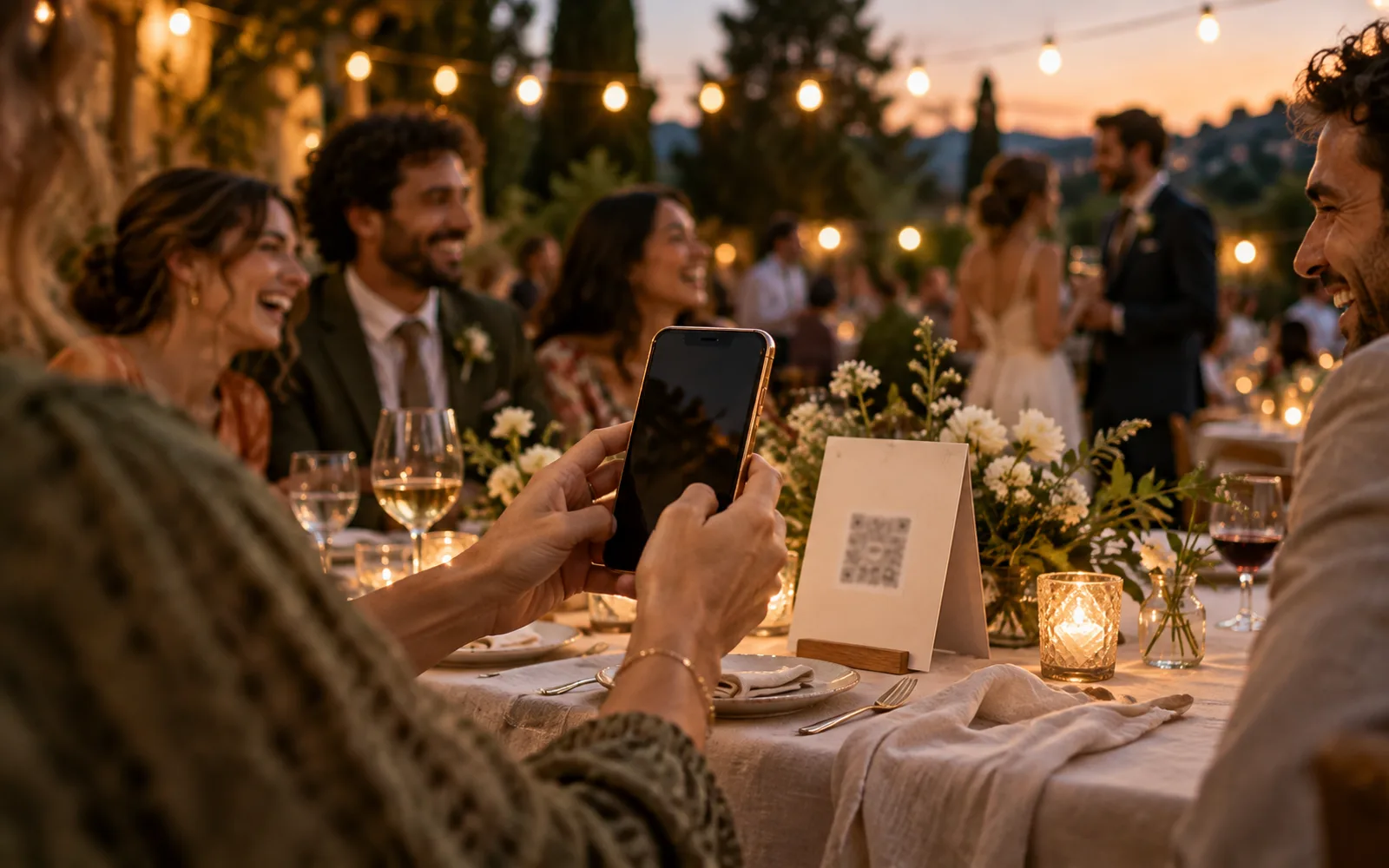
To collect wedding photos from guests, choose one place for uploads, test it on a guest's phone, and share the same link before, during, and after the wedding. Put a QR code where guests can see it, with a short explanation of what to do. Keep the link available for people who prefer a message to a scan.
The collection method matters, but so does the invitation to use it. Guests need to know where their photos go, who can see them, and how long they have to contribute. Here's a practical plan you can adapt to your wedding.
Choose a collection method your guests can use
Start with the outcome you want: a gallery everyone can browse, or a private collection for the couple. Then check what a guest has to do to add a photo.
| Method | Useful when | Check before choosing |
|---|---|---|
| Browser-based event album, such as Ourview | You want one event invitation and a guest photo gallery | Guest access, gallery visibility, capacity, photo limits, and storage period |
| Google Photos shared album | Your group already uses Google Photos | Collaboration and link-sharing settings; test how guests add photos on their own phones |
| Dropbox file request | You mainly want to collect files privately | Available storage and how you'll share the collected photos afterward |
| Direct messages or email | You only need a few photos from a small group | Who will gather the files from separate conversations and keep track of missing contributions |
Google Photos supports shared albums and link sharing, including controls over whether others can contribute. Dropbox file requests let people send files without a Dropbox account; the files go into the folder you choose. A file request and a shared gallery serve different purposes, so decide whether guests should also be able to browse the collection.
A QR code is simply another way to open a link. It doesn't determine whether uploads need an account, who can see the photos, or whether the files are kept at original quality. Test the destination behind the code.
Set up and test the album before the wedding
If you're using Ourview, the host signs in and creates the event. Guests don't need a host account or an app download to contribute.
- Create the event. Add the wedding name and start date, choose your guest capacity and photo allowance, and finish the event setup. You can try the free tier with up to five guests; unlimited shots is a paid option. See the current pricing.
- Choose who can see the gallery. A shared gallery lets guests browse after the reveal time. A host-only gallery accepts contributions without showing guests the collection. Decide whether shared photos should appear immediately or later.
- Set the upload window. Leave enough time for guests to send photos after they get home. Tell them the deadline you choose.
- Open the invitation. It contains the guest link and QR code. Use Copy link to save the link for your messages.
- Test as a guest. Open the invitation in a separate browser or on another phone, enter a name, choose a photo, and wait for the upload to finish. A guest pass stays in that browser, so testing outside your usual browser gives you a clearer view of the join step.
- Check the result as the host. Confirm that the photo arrived and that the visibility settings do what you intended. Include an iPhone HEIC photo in your test if that's a format your guests will use.
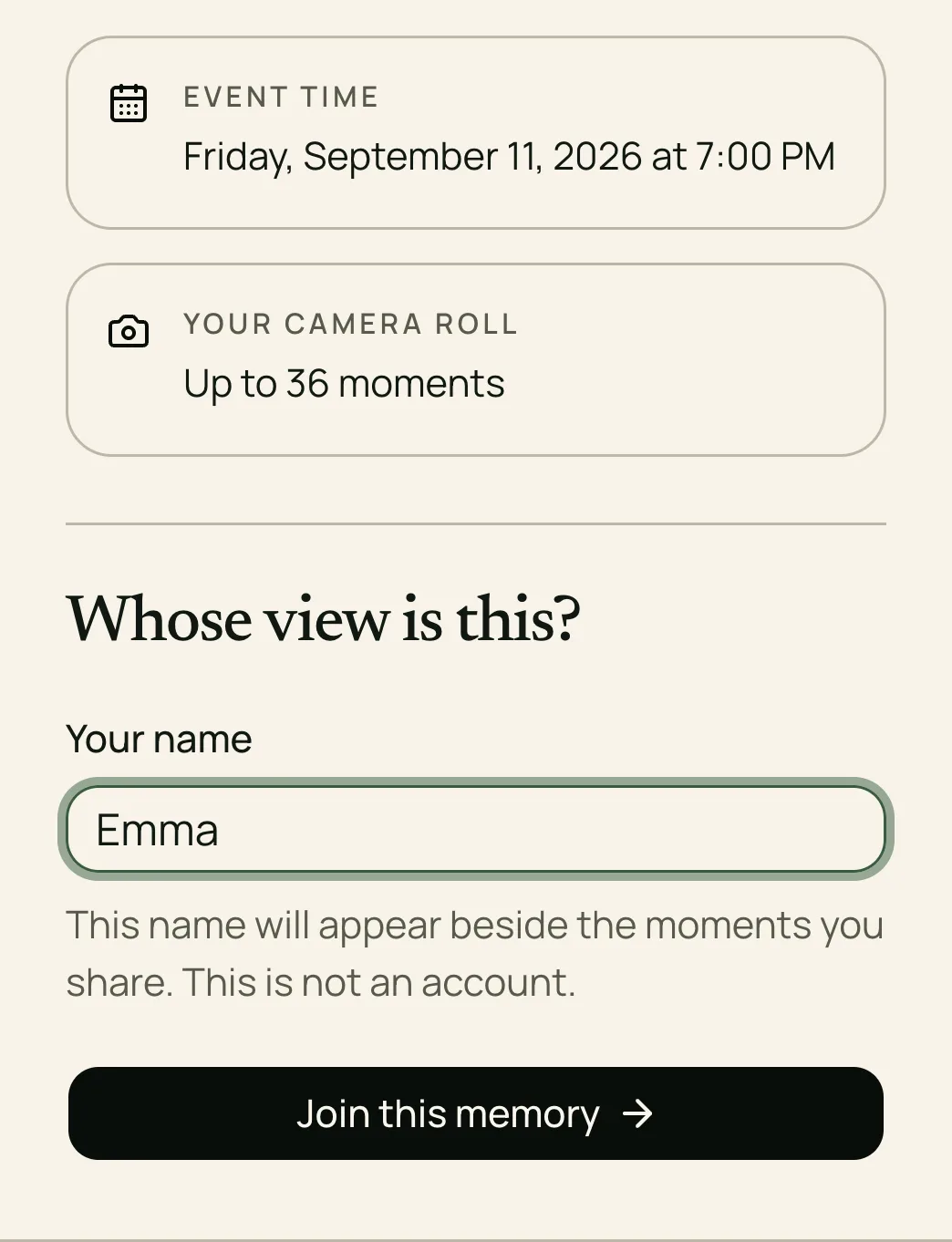
For a printed card, use the code shown in the invitation or encode the copied link in a QR generator. Test the actual printed version with a phone before making the full batch. Ourview's invitation screen shows a code and link; it doesn't currently offer a print-ready PDF download. See how QR code albums work.
Put the invitation where guests will notice it
A small card on each table is a practical starting point. You can also place the code near the guest book or on a welcome sign. Give it space around the edges, keep the contrast clear, and avoid hiding it behind flowers or glassware.
Include three things: what the album is for, what to do, and the contribution deadline. Send the link digitally too, so guests don't have to keep the card or return to the venue to add their photos.
Ask your MC or a willing friend to mention the album once during the reception. Keep it brief and optional. Your guest collection complements the photographer's work; it doesn't replace professional coverage or require guests to spend the evening on their phones.
Messages you can copy and adapt
Replace the bracketed parts with your actual link and deadline. Match the wording to your gallery settings: don't promise that everyone can browse an album you've made host-only.
Before the wedding
We'd love to see the day from your point of view. If you take photos, please add your favorites to our wedding album: [guest link]. You can also scan the cards at the reception. Please upload by [deadline].
On the table card
Share your view of our wedding. Scan the code, enter your name, and add your favorite photos. Please upload by [deadline]. Thank you!
The name instruction fits Ourview's guest flow. Adjust it if you choose a different collection tool.
After the wedding
Thank you for celebrating with us! If you have photos from the day, we'd love to see them. Please add your favorites here by [deadline]: [guest link].
One follow-up a day or two after the wedding is a reasonable starting point. Ask particular friends directly if you know they captured a moment you're hoping to keep.
Fix common upload problems
| What happens | What to try |
|---|---|
| The QR code won't scan | Send the guest link directly. Check the printed card for blur, glare, poor contrast, or a code that is too small. |
| Uploading stalls on venue Wi-Fi | Keep the page open while checking the connection. Try a smaller batch or return to the link when a reliable connection is available; verify which photos arrived before retrying. |
| A guest can't join | Check whether uploads have closed or the event has reached its guest capacity. |
| The gallery is unavailable to a guest | Check whether it's host-only or waiting for its reveal time. Upload access and gallery access are separate settings. |
| A file is rejected | Ourview currently accepts photos, including HEIC/HEIF, up to 25 MiB each. Video uploads are not currently enabled. |
Share the invitation with the people you want to contribute. Anyone who receives the link may be able to join while access is open; "private link" doesn't mean it cannot be forwarded. If you replace the Ourview invitation link, the previous link and its printed QR code stop working, so update the messages and cards too.
Save the original files after the wedding
Open the host event and choose Download all to collect the uploaded files in a ZIP archive. Ourview keeps uploaded photos at their original size and quality, and archive filenames include the contributing guest's name.
Ourview's storage period is 90 days from the event start. Download the archive before that period ends; an earlier upload deadline doesn't extend storage. Open the ZIP, check that the files you want are present, and keep a backup somewhere you control.
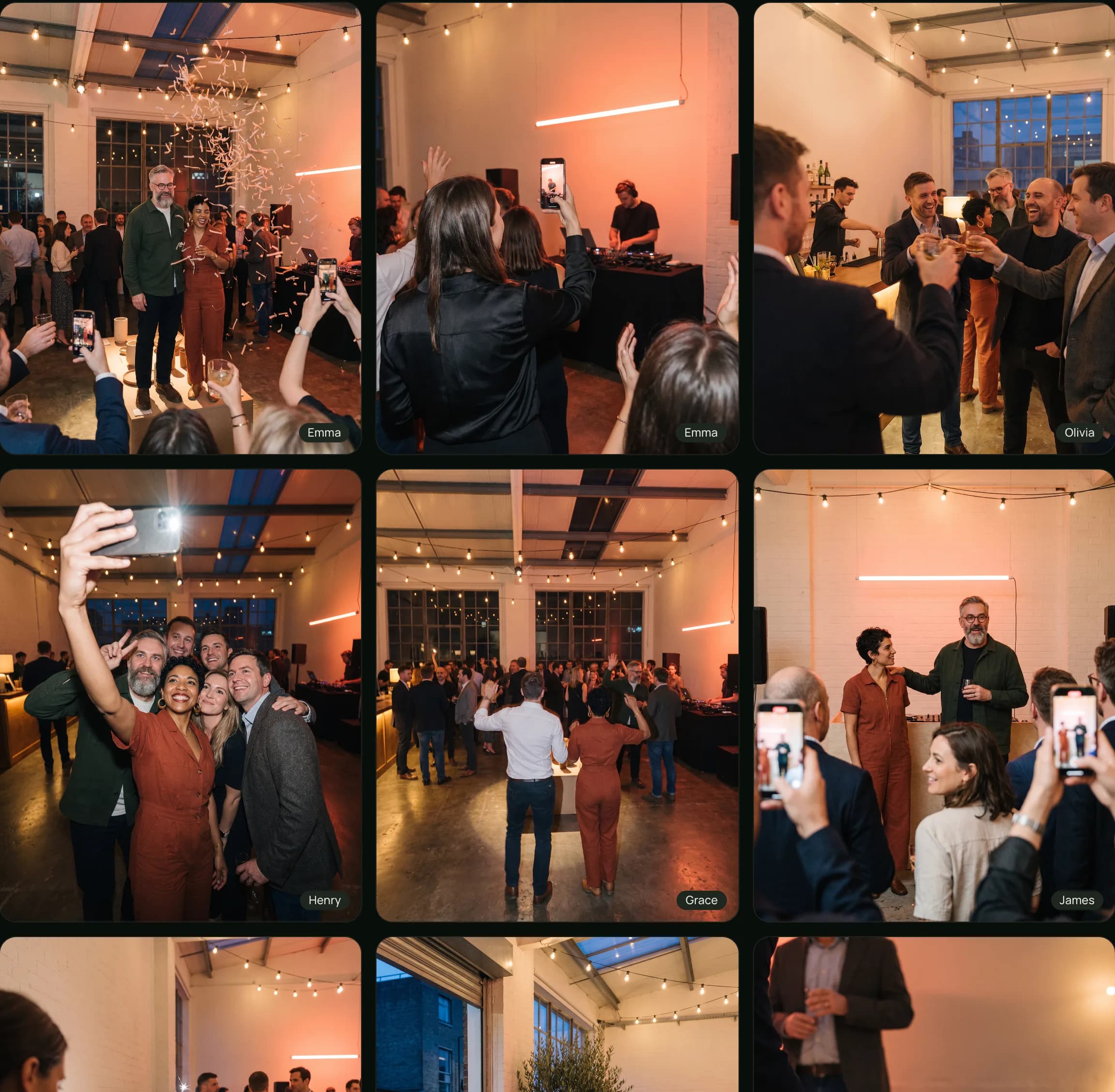
A short rehearsal checklist
Before sharing the invitation with everyone, confirm:
- A guest can open the link and complete a real photo upload.
- The printed QR code works on the phones you test.
- The gallery visibility and reveal time match what you've told guests.
- The guest capacity and photo allowance fit your plan.
- The upload deadline appears in your messages.
- Someone will give a brief reminder at the reception.
- You've set a reminder to download and back up the collection before storage expires.