How to Collect Birthday Party Photos from Guests
Collect birthday party photos with one guest link, a tested QR code, and three messages to copy. Plan for surprise parties, family celebrations, and saving photos.

To collect birthday party photos from guests, choose one place for uploads, share its link in the party chat, and keep a QR code somewhere guests can stop to use it. Ask for a few favorite photos, explain who can see them, and send a thank-you with the same link afterward. Before inviting everyone, check that a guest can join and finish an upload.
The plan below includes a short setup, three messages to adapt, and photo ideas for the party. For a small dinner, asking friends to send you their favorites directly may be enough. A shared collection is useful when you want contributions to arrive in one place while you host.
Match the invitation to the party
Decide who will receive the link and who should see the collection before you send it. These are suggested plans you can adapt to your celebration.
| Party | When to introduce sharing | A useful photo request | Visibility to explain |
|---|---|---|---|
| Adult dinner or milestone birthday | Put the link in the planning chat and a card near the drinks | A photo with the birthday person, plus a moment they missed while hosting | Say whether guests can browse during the party or after a reveal |
| Surprise party | Brief a helper privately; keep the invitation out of chats that include the birthday person | The entrance reaction, followed by relaxed photos after the surprise | A delayed gallery reveal does not hide the invitation's title or cover |
| Family party with children | Explain the plan to parents or caregivers before asking for contributions | The cake, decorations, and people who are comfortable being photographed | State who will see photos and ask before sharing them beyond the group |
For a surprise party, wait until after the surprise to display a sign publicly. Choose the event name and cover with care if either could reveal the plan. Keeping the gallery closed until later does not make the invitation itself a secret.
At a children's party, adults can handle the sharing. Tell guests whom to contact about a photo they would prefer not to have in the collection. A host-only collection can keep the guest gallery closed, but it does not replace a conversation about taking or sharing someone's photo.
Set up the collection and try the guest steps
Have the party date, a rough guest count, your preferred gallery visibility, and an upload deadline ready. If you use Ourview, the host signs in to create the event; guests use its invitation in their browser without creating an Ourview account or downloading an app.
- Create the birthday event. Choose a guest capacity and photo limit that fit your group. Test participants use guest capacity too.
- Choose who can browse. A shared gallery can open immediately or at a scheduled reveal. A host-only collection accepts contributions without opening the collection to guests.
- Choose when uploads close. Leave time for guests to send photos after returning home if that is your plan. The upload deadline and gallery reveal are separate settings.
- Copy the invitation. Open Invite guests, then use Copy link. The same panel displays the QR code for the guest invitation.
- Rehearse on a guest's phone. Open the link, enter a name in Your name, select Join this memory, and upload a photo you are comfortable keeping in the collection. Wait for Shared before closing the page. A test upload uses the guest's photo allowance.
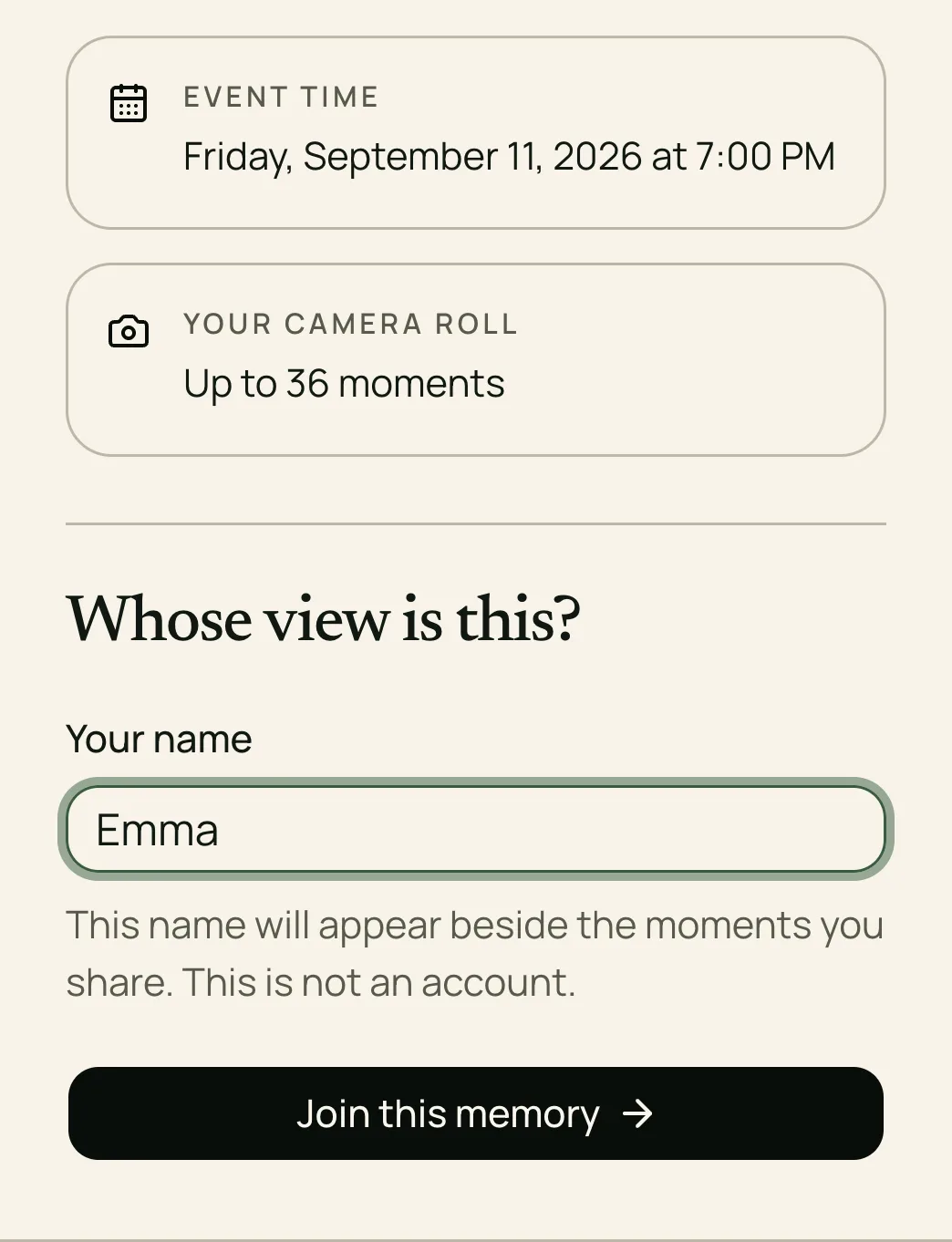
The invitation can be forwarded. Someone who receives it may be able to join while contributions are open and capacity remains; gallery access follows your visibility settings. See our guide to collecting photos without guest accounts for the access details.
If you print a card, scan one finished copy before making the rest. Keep the direct link ready for anyone who cannot scan. Our QR setup guide uses a wedding example, but the invitation and print checks also apply to birthdays.
Make one clear request during the party
Put the card where guests can pause, such as a side table near the drinks or the photo corner. Keep it clear of spills and decorations. You can also show the code on your phone when someone asks how to contribute.
Choose one helper to explain the invitation while you handle the cake or welcome arrivals. Ask them to take a photo that includes you, too. Guests do not need a long shot list; one or two optional ideas are enough:
- The birthday person with someone they rarely get a photo with.
- The cake just before the candles are blown out.
- A wide view of the table before everyone sits down.
- A decoration or handmade detail worth remembering.
- A candid moment while the host is busy elsewhere.
- A group photo before the first guests leave.
Let people skip photos or sharing. If someone sends a file to you directly instead, keep it with your saved collection afterward.
Three messages you can copy
Replace the brackets before sending. Choose one visibility sentence that matches your settings: “Guests can browse the shared gallery now,” “The shared gallery opens on [date and time],” or “This collection is for the host; guests won't be able to browse it.”
Before the party
We'd love a few photos from [name]'s birthday. You can add them here: [guest link]. Open the link, enter your name, and share your favorites by [date, time and time zone]. No guest account or app download is needed. [Visibility sentence.] Thank you!
For a surprise party, send this only to people who know the plan. Add: “Please keep this link and the party details out of chats that include [name] until after the surprise.”
On the card or in a short announcement
Got a lovely birthday photo? Scan the code or open [guest link], enter your name, and add a few favorites. Please wait for “Shared” before closing the page. [Visibility sentence.] Uploads close [date and time].
After the party
Thank you for celebrating with us! If you took a photo of the cake, a group shot, or a moment we missed, we'd love a copy: [guest link]. Please add your favorites by [date, time and time zone]. [Visibility sentence.]
Send the follow-up while contributions are still open. These are messages for you to send through your usual chat or invitation channel.
If a guest cannot join or upload
The QR code will not scan: send the direct guest link. Check the card for glare, blur, or a cropped code. If you use Replace invitation link in Ourview, the previous URL and its QR code stop working; update both messages and printed cards.
The invitation opens but joining is unavailable: check the event's guest capacity, upload deadline, and availability from the host side. Opening the link successfully does not mean a new guest can still join.
A file does not finish uploading: check the displayed error, try a small selection on a reliable connection, and wait for confirmation. Ourview currently accepts photos up to 25 MiB each, including HEIC/HEIF; video uploads are not enabled. If someone wants to share a birthday video, arrange a separate destination for it.
The photo says Shared but the guest cannot browse the collection: check the gallery choice and reveal time. A host-only collection does not open the collection to guests, and a scheduled shared gallery stays closed until its reveal. Check from the host view before asking someone to upload the same photo again.
Save the photos after the thank-yous
Before sending the last reminder, check that uploads are still open. If you promised a shared gallery that opens later, check that its reveal time matches your message. Closing uploads does not extend storage.
Ourview's storage period is 90 days from the event start. While the event is available and has not expired or been frozen, the host can use Download all to get a ZIP of ready, available photos. Download before that period ends, open the archive to check it, and keep a backup in another location. Do not rely on the event link as permanent storage.
Before you send the invitation, check five things: the link works on a guest's phone, one upload reaches Shared, the visibility matches your message, the deadline leaves time for your follow-up, and someone has a reminder to save the collection. Then set up your birthday photo collection with Ourview.