How to Collect Event Photos Without Guest Accounts
Collect event photos through one link or QR code without guest sign-ups. Learn the guest steps, gallery visibility choices, and access checks before sharing.

To collect event photos without guest accounts, use a browser-based collection with one guest link or QR code. The organizer creates the event, and guests open the invitation, enter a name, and add photos from their phones. With Ourview, guests do not need to register or download an app; the host signs in separately to create and manage the event.
Before sharing the link, choose who can see the collection and when uploads close. Those settings matter whether you're gathering photos from a birthday, a wedding, a family reunion, or a work celebration. This guide explains the guest flow and gives you an access checklist to use before sending invitations.
What “no guest account” means
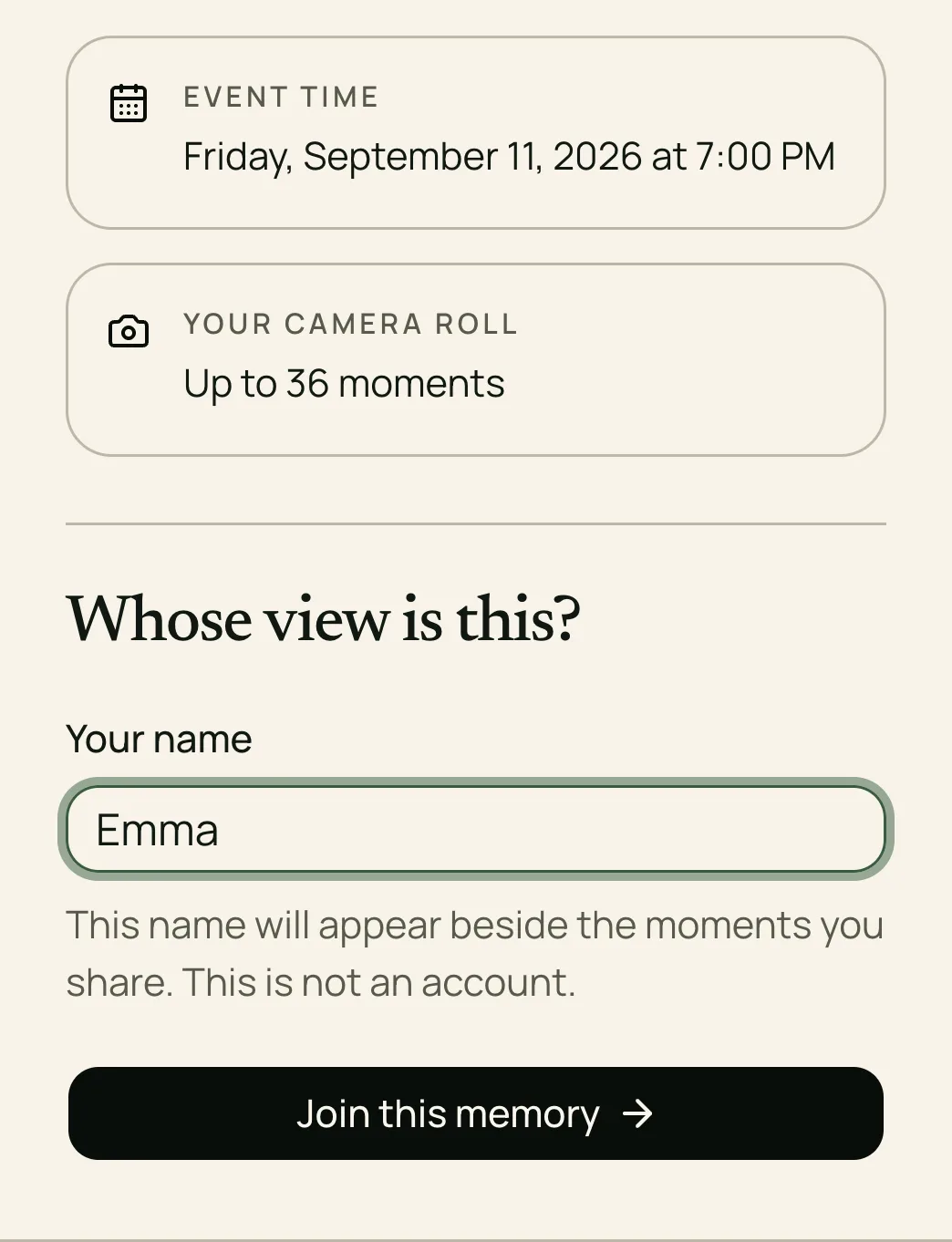
In Ourview, a guest enters a display name rather than creating a login. That name appears beside the photos they share. They do not set a password or sign in to the host's account.
A name is a label for contributions, not proof of someone's identity. Guests should use a name you'll recognize, but the invitation is not restricted to a verified list of named people. Someone who receives a forwarded link may also be able to join while contributions are open and capacity is available.
The guest pass is remembered in that browser. Returning in another browser or after clearing its cookies may require joining again; entering the same name is not an account-recovery method. Ask guests to return through the same link in the same browser when possible.
Set up the collection, then share the guest link
As the host, sign in and create your event. Set the event date, guest capacity, photo allowance, gallery visibility, and upload closing time. Choose these before distributing invitations so the instructions you send match what guests will experience.
Open Invite guests and select Copy link. Send that guest URL through the channel you already use for the event. For printed invitations or table cards, use the QR code from the same invitation panel. If copying fails, select the displayed URL and copy it manually.
A QR code is another way to open the guest link; it does not add an identity check or change who can see the gallery. Include a tappable link in digital messages so guests do not have to scan a code on their own screen. Our QR setup guide covers the invitation panel and print checks in more detail.
For a very small group, collecting photos directly from each person may be enough. A shared destination becomes useful when you want guests to contribute to one collection instead of handling separate conversations and files yourself.
What your guests do
- Open the invitation. Tap the guest link or scan its QR code with a phone.
- Enter a name. Fill in Your name and choose Join this memory. This creates a guest pass, not a host account.
- Choose photos. Tap the upload area under Add the moments only you saw. and select photos from the phone. Keep within the event's photo allowance.
- Wait for confirmation. Leave the page open while files upload and check that each intended photo is marked Shared. Selecting a file does not establish that it arrived.
Ourview currently accepts photos, including HEIC/HEIF, up to 25 MiB per file. Video uploads are not enabled. Guests need an internet connection to send their files; if the venue connection is unreliable, they can return before the upload deadline on a better connection.
Decide who should see the photos
Being able to contribute does not necessarily mean being able to browse everyone's photos. Choose the experience you want, then explain it in the invitation. The following table describes joined guests in an active, unexpired event with uploads still open.
| Your goal | Gallery setting | What guests can do |
|---|---|---|
| Let guests browse as photos arrive | Shared gallery, no delayed reveal | Contribute photos and browse the shared collection. |
| Collect first and show the gallery later | Shared gallery, scheduled reveal | Contribute before the reveal; browse once the gallery opens. |
| Collect photos for the hosts | Host-only collection | Contribute without browsing the collection. |
The upload deadline and gallery reveal are separate. Closing uploads does not itself reveal a gallery, and a later reveal does not extend the time available to contribute. New guests also need available guest capacity to join; an existing guest's access is not a reliable check that a new person can enter.
For example, a birthday organizer might collect photos during the party and reveal the shared gallery the following afternoon. A work-event organizer might choose a host-only collection instead.
Use a short invitation that matches your choice:
We'd love a few favorite photos from [event]. Open [guest link], enter your name, and add your photos by [date, time and time zone]. No guest account or app download is needed. [Add the visibility sentence below.] Thank you!
Replace the final placeholder with one of these sentences:
- Shared now: “Guests who join can browse the shared gallery.”
- Shared later: “The shared gallery opens to joined guests on [date, time and time zone].”
- Host-only: “You're contributing to a collection only the hosts can view; guests won't be able to browse it.”
These are messages for you to send, not automated Ourview notifications. For a wedding, our guest participation guide includes a reminder plan and more message examples.
Treat the invitation as an access link
Send the invitation to the people you want to contribute. Avoid posting it publicly if the collection is intended for a limited group. A host-only gallery keeps the collection out of guests' view, but it does not stop someone from forwarding the invitation to another potential contributor.
If you need a new invitation, Replace invitation link invalidates the old URL and the QR code containing it. Update messages, event pages, and printed cards together. This changes the invitation; it is not a way to verify people's identities or take back photos someone has already saved.
For an event that requires verified attendee identities, don't treat a name-entry guest link as satisfying that requirement. Choose a collection process appropriate to that need.
Rehearse before inviting everyone
Before sending invitations, run this checklist on your configured event. A test guest uses guest capacity, and test uploads use that guest's photo allowance.
- Check a new arrival. Open the guest link in a browser that has not joined. Confirm the correct event appears and a new guest can enter a name.
- Send a sample photo. Join, choose a non-sensitive test image, wait for Shared, and confirm it appears in the host collection.
- Check visibility as a guest. Confirm the collection is browsable now, waiting for its reveal, or host-only, according to your choice.
- Check a return visit. Reopen the link in the same browser and confirm the guest pass is recognized.
- Check the invitation you will distribute. Test a printed QR at its final size and keep the direct link available too.
- Check the dates. Match the deadline in your message to the upload settings, including the time zone.
If a new person cannot join, check capacity and whether uploads have closed. If the link is unavailable, ask the host for the latest invitation. If a guest can upload but cannot browse, check gallery visibility and reveal time before treating it as an error. For a rejected file, check its format, size, and the guest's remaining photo allowance.
Keep your own copy after the event
Ourview stores the event for 90 days from its start. An earlier upload closing time does not extend that period. While the event remains available, the host can use Download all to save the ready photos as a ZIP archive. Download and back up the collection before storage expires.
If you're still choosing a collection method, our Google Photos and dedicated wedding album comparison explains the account and sharing differences for that use case. To set up a browser-based collection for your own event, explore Ourview, choose the guest access and gallery settings, and rehearse the invitation before sending it.