How to Collect Corporate Event Photos from Attendees
Collect corporate event photos with one guest link, clear responsibilities, and three messages to copy. Plan access, follow-up, and the archive handoff.

To collect corporate event photos from attendees, choose one upload destination, name the person responsible for it, and share the guest link before people arrive. Put its QR code where attendees can pause to scan, explain who can see the photos, and send a follow-up before uploads close. Afterward, download the collection and review the files before handing a selection to your communications team.
This guide includes a responsibility table, a short setup, and three messages to adapt for a conference or team offsite. If a few colleagues can send their photos directly through an existing, approved company tool, that may be enough. A separate event collection helps when employees and external attendees need the same place to contribute.
Decide what the collection is for
An internal team album and a set of images for a public event recap have different audiences. Decide which you are collecting before sending the invitation. Tell attendees what you are asking for, who can browse the collection, and whom to contact about a photo they would prefer not to have included.
For a conference, the invitation might go to employees, speakers, and outside guests. Send the same guest link through the channels each group already uses; a link hidden inside an employee-only workspace will not reach external attendees. For an offsite, the calendar invitation or existing team channel may be sufficient.
Choose one person to manage the event collection and a contact who can help attendees find the invitation. Helping with messages does not require sharing the host's sign-in details. Agree who will receive the downloaded files and who will review any selection intended for wider use.
With Ourview, choose a host-only collection if attendees should contribute without browsing the collection. Choose a shared gallery if you want guests to browse, either immediately or after a scheduled reveal. Neither choice turns an upload into approval for every later use. Route public or marketing selections through your organization's normal review process.
Give each stage an owner and an outcome
Use this suggested handoff plan as a starting point. These are organizing tasks you assign, rather than roles or automated reminders inside Ourview.
| When | Responsible person | Action | Expected result |
|---|---|---|---|
| Before invitations go out | Collection owner | Choose visibility, upload deadline, and capacity; rehearse the guest steps | One tested guest link and a clear explanation of access |
| At registration or the opening session | Attendee contact or session host | Show the QR and explain where the direct link is available | Employees and external guests can find the same destination |
| Before people leave | Session host | Give a short reminder and name the upload deadline | Attendees know they can contribute later while uploads remain open |
| After the event, before uploads close | Collection owner | Send a thank-you through the existing invitation channels | One follow-up reaches the intended contributors |
| Before storage expires | Collection owner and communications recipient | Download, inspect, back up, and hand over the agreed selection | Files are saved outside the event collection and the handoff is complete |
At a conference, put the request in the opening and closing slides, with the link in the attendee email. At an offsite, use the team message and a card near the meeting entrance. Keep the request out of confidential sessions, and remind contributors to check for private documents or sensitive information visible on screens.
Set up Ourview and rehearse a contribution
Have the event date, expected contributor count, visibility choice, and upload deadline ready. The host signs in to create and manage the event. Guests join in their browser without creating an Ourview account or downloading an app.
- Create the event for the contributors you expect. Choose the guest capacity and per-guest photo allowance. Include rehearsal participants in your capacity planning.
- Set visibility and timing. A shared gallery's reveal time controls when guests can browse. The upload deadline controls when contributions close; these are separate settings.
- Get the guest invitation. Open Invite guests, then select Copy link. The same panel shows the QR code for that guest URL. If copying fails, select the displayed URL and copy it manually.
- Try it outside the host session. On a guest's phone, open the invitation, enter a name in Your name, and select Join this memory. Upload a photo you are comfortable keeping, then wait for Shared before closing the page. A test upload uses that guest's photo allowance.
- Check the host result and guest view. Confirm that the photo arrived and that what the guest can browse matches your invitation. Test the final printed or displayed QR, and keep a tappable link available as another route.
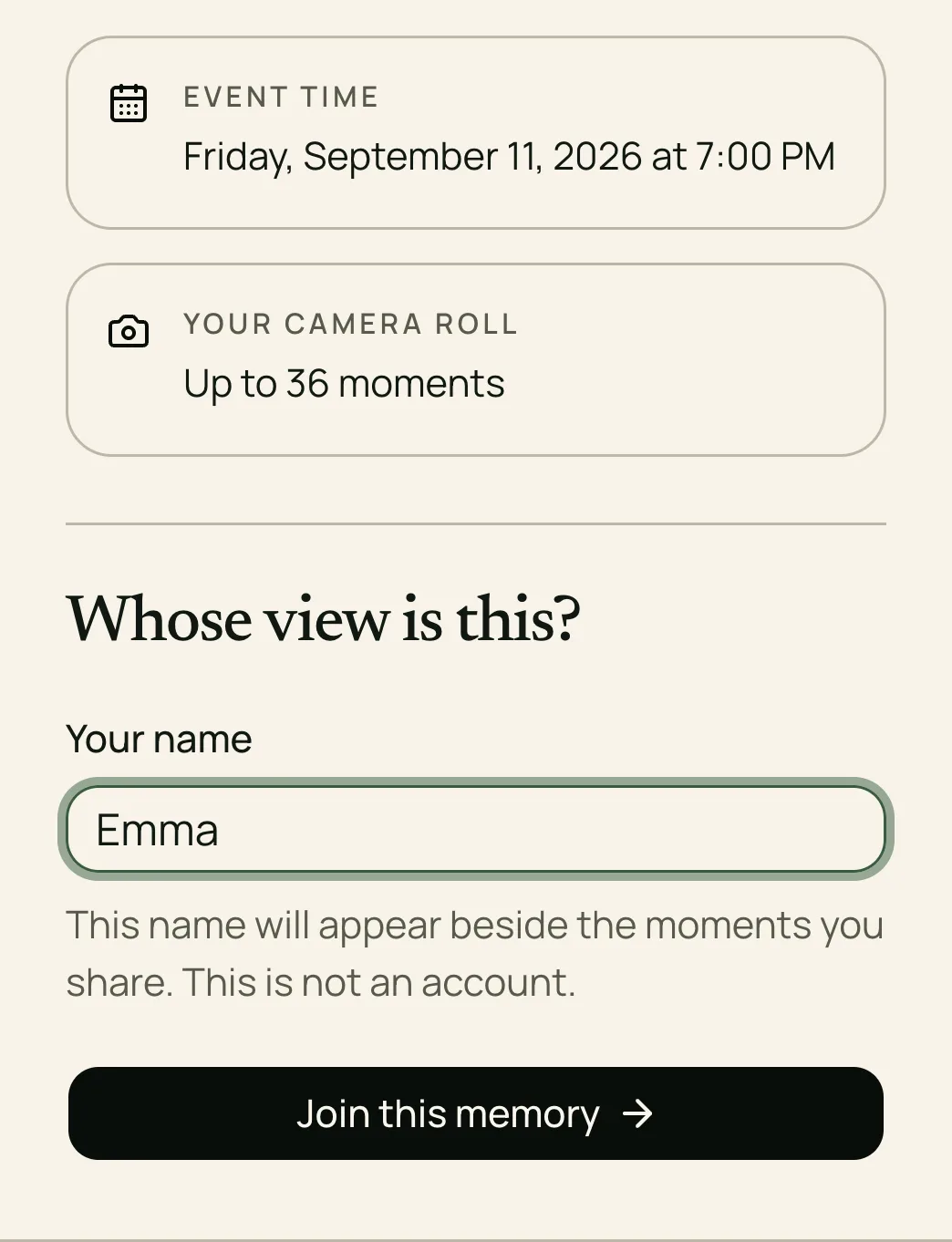
A name labels a contribution; it is not a verified employee identity. Someone who receives a forwarded invitation may also be able to join while contributions are open and capacity remains. Our guide to collecting photos without guest accounts explains the access conditions in more detail.
Three messages for your event channels
Replace every bracket before sending. Use the visibility sentence that matches your settings: “Guests can browse the shared gallery now,” “The shared gallery opens on [date and time],” or “This is a host-only collection; guests cannot browse the collected photos.”
Send these yourself through email, Slack, Teams, or your existing invitation channel. They are suggested messages, not automatic Ourview notifications.
Before the event
We're collecting attendee photos from [event] for [purpose]. If you'd like to contribute, open [guest link], enter your name, and add your favorites by [date, time and time zone]. No guest account or app download is needed. [Visibility sentence.] Please check for confidential information in the frame and ask before photographing someone. For questions or a photo you'd prefer removed, contact [person/channel].
Send this to external attendees through a channel they can actually access. If your company requires an approved tool or a review before sharing an invitation outside the organization, complete that process first.
At the opening or closing session
If you take a photo you'd like to contribute today, scan the code on [slide/sign] or use the link in [attendee email/team channel]. Enter your name, add your photos, and wait for “Shared.” Uploads close [date and time]. [Visibility sentence.] Taking and sharing photos is optional; please respect anyone who prefers not to be photographed. Our photo contact is [person/channel].
Keep the code visible long enough to use. A QR on a busy registration desk is less useful if people must block the queue to scan it. Offer the direct link when scanning is awkward.
After the event
Thank you for joining [event]. If you have photos you'd like to contribute for [purpose], please add them here by [date, time and time zone]: [guest link]. [Visibility sentence.] Please leave out confidential screens or documents. We will review any selection intended for wider communications separately. Contact [person/channel] with questions or a photo you'd prefer removed.
Check that contributions are still open before sending the follow-up. For a broader reminder plan, see how to help guests upload their photos; adapt the timing to your event rather than sending every possible reminder.
If attendees cannot join or upload
The QR will not scan: send the direct guest link. Check the actual sign or slide for blur, glare, or a cropped code. If the host uses Replace invitation link, the old URL and its QR stop working; update attendee emails, slides, and printed signs together.
The invitation opens but joining is unavailable: check capacity, the upload deadline, and the event's availability from the host side. A working link does not guarantee that a new attendee can still join.
A file does not finish uploading: read the error, try a small selection on a reliable connection, and wait for confirmation. Ourview currently accepts photos up to 25 MiB per file, including HEIC/HEIF. Video uploads are not enabled; arrange another approved destination if you also need clips.
A photo says Shared but the guest cannot browse: check the visibility choice and reveal time before asking for another upload. A host-only collection does not show guests the collection, and a scheduled shared gallery stays closed until its reveal.
Download, review, and hand over the files
While the event remains accessible and has not expired or been frozen, the host can use Download all to save a ZIP of ready, available photos. Archive filenames include the contributing guest's name. That name helps organize the handoff; it is not proof of identity or permission for external use.
Open the archive, check that the files you need are present and readable, and keep a backup in a separate location. Ourview's storage period is 90 days from the event start. An earlier upload deadline does not extend it, so give someone a reminder to download before expiry.
Keep the saved originals separate from the selection you hand over. Review that selection for confidential information, people who have asked not to be included, and the intended audience. Deliver it through your organization's usual approved channel, with a clear note about its purpose. Do not use the guest invitation as a substitute for that handoff.
Before inviting attendees, confirm five things: the owner is named, employees and external guests can reach the link, a test upload reaches Shared, visibility matches the message, and someone owns the archive deadline. Then set up your corporate event photo collection.